Interactive Signal Processor & OEM Interface (Patent Pending) 3SIXTY.1

The 3Sixty.1 is the most advanced OEM integration processor on the market. Its advanced artificial intelligence allows the use of aftermarket car audio equipment to be utilized with virtually any OEM source unit.
• Model replaced by 3SIXTY.3
Overview
The 3Sixty.1 is the most advanced OEM integration processor on the market. Its advanced artificial intelligence allows the use of aftermarket car audio equipment to be utilized with virtually any OEM source unit. In addition, auto-equalization processes overcome and correct for OEM response inadequacies. There's also an auxiliary input for an iPod or other external audio device.
FEATURES AT A GLANCE
- 1 Year Warranty
- Bluetooth™ Connectivity (via compatible mobile device)
- Digital Signal Processor with OEM integration capabilities (patent pending)
- Auto equalization with auto sum capability
- Auxiliary RCA inputs
- Remote programmable master volume/aux volume control
Technologies
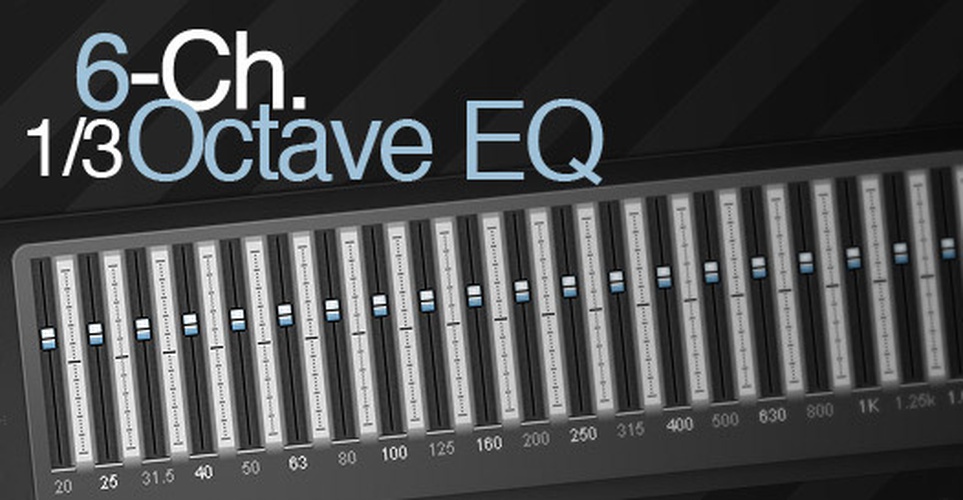
The 6-channel 1/3 octave equalizer allows complete signal manipulation of either OEM or aftermarket audio systems …
Learn more6-Ch. 1/3 Octave EQ
The 6-channel 1/3 octave equalizer allows complete signal manipulation of either OEM or aftermarket audio systems (user adjustable on 3SIXTY.2 only.)
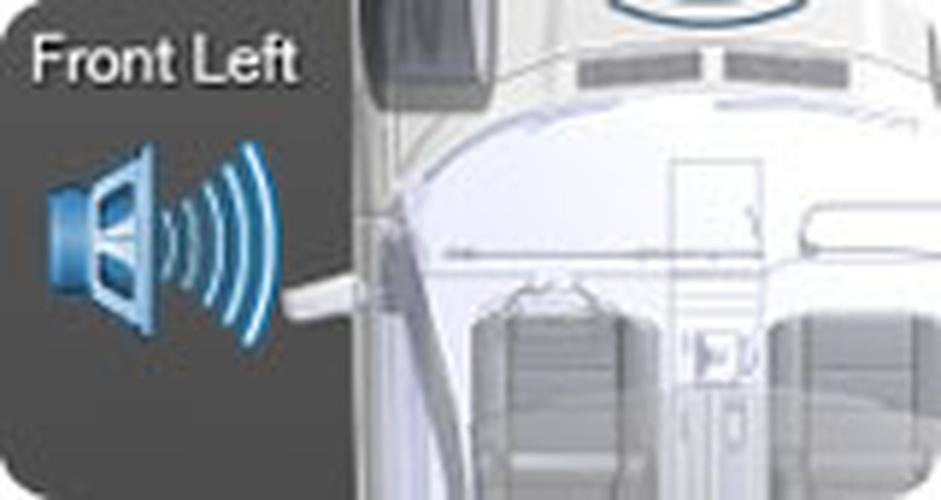
The 3SIXTY's intuitive navigation gives the user quick access to all channels, inputs and level controls. …
Learn moreIntuitive Navigation
The 3SIXTY's intuitive navigation gives the user quick access to all channels, inputs and level controls. The graphical user interface also provides confirmation of what settings are currently being modified.
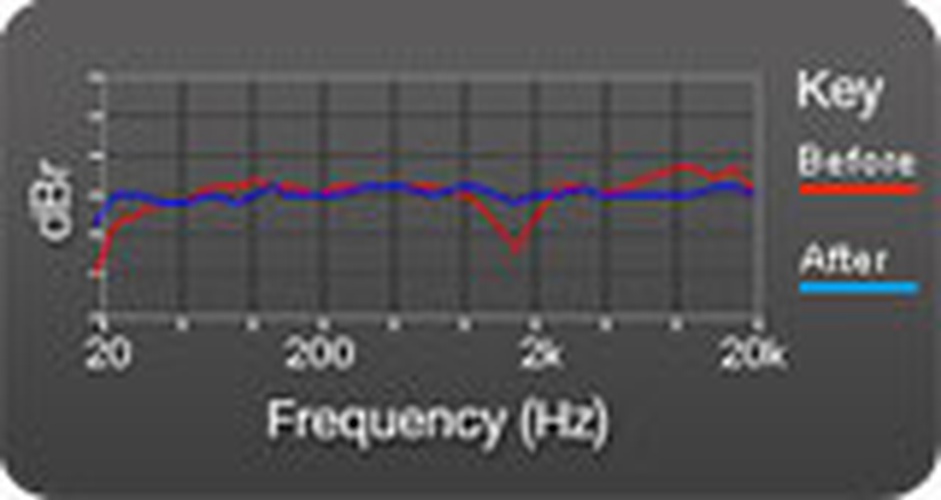
See how sound in your factory system can automatically be improved using the 3SIXTY. With the …
Learn moreOEM Equalization
See how sound in your factory system can automatically be improved using the 3SIXTY. With the OEM Response window, you can visually confirm before and after frequency plots.

Setup and configuration can be accomplished with any compatible Palm OS device.
Learn morePalm OS
Setup and configuration can be accomplished with any compatible Palm OS device.
Setup and configuration can be accomplished with any compatible Windows Mobile device.
Learn moreWindows Mobile
Setup and configuration can be accomplished with any compatible Windows Mobile device.
Utilizing both hi-level (speaker) and low-level (RCA) inputs, the 3SIXTY can interface with all factory and …
Learn moreOEM Integration
Utilizing both hi-level (speaker) and low-level (RCA) inputs, the 3SIXTY can interface with all factory and after-market source units.
The dash-mounted remote knob can function as either a master or subwoofer level control.
Learn moreDual Function Remote
The dash-mounted remote knob can function as either a master or subwoofer level control.
Take your music with you by connecting your favorite iPod or MP3 player to your system …
Learn moreiPod Input
Take your music with you by connecting your favorite iPod or MP3 player to your system using 3SIXTY's AUX inputs. You can also use the AUX inputs to channel your gaming console through your audio system.
Wirelessly stream audio to your unit with any compatible Bluetooth™ device.
Learn moreBluetooth™ Audio Streaming
Wirelessly stream audio to your unit with any compatible Bluetooth™ device.
Specifications
Output Gain: +/- 10dB
4.45 H x 18.41 W x 10.79 D (cm)
(0.45 Kg.)
Dell X51V
Dell X50 (requires Dell OS upgrade)
Dell X50V
E-Ten G500+
Palm® Treo 700W
Palm® Treo 700WX
T-Mobile MDA
T-Mobile SDA
Sprint® PPC-6700
Cingular VX6700
These devices available in USA based on hardware platforms available world-wide. World-wide platforms should be compatible but have not been explicitly tested.
Motorola Q
HP (all devices)
.Net Compact Framework 2.0 (or higher)
Microsoft Bluetooth® Stack
Low-Level: (8) RCA (FR/FL/RR/RL/Center/Sub/L-AUX/R-AUX)
160, 630, 2.5k, 10k (Rear)
160, 630, 2.5k, 10k (Center)
25, 63 (Sub)
Bluetooth®
320x320 display
16-bit color resolution
Palm® Treo 650
Palm® Treo 700P
Palm® Tungsten E2
Palm® Tungsten T5
Palm® TX
SONY® PEG-NZ90
SONY® PEG-UX40
SONY® PEG-UX50
Zire 72
Zodiac
Zodiac2
Support
Knowledge Base Articles
- 3Sixty.1 & 3Sixty.2 - software downloads
- 3Sixty.1 & 3Sixty.2 - owner's manual
- Remote knob for 3Sixty signal processors
- Fixing 3Sixty.1/3Sixty.2 skewed user interface on Windows PC application
- One remote with multiple 3Sixty.1 & 3Sixty.2 processors - tech brief
- Inputs required on 3Sixty.1 & 3Sixty.2 to get sub/center output - Advisory
Show all Knowledge Base topics
Ask Our Experts
Return Authorization
Contact the Authorized Rockford Fosgate Dealer you purchased this product from. If you need further assistance, call 1-800-669-9899 for Rockford Customer Service. You must obtain an RA# (Return Authorization number) to return any product to Rockford Fosgate. You are responsible for shipment of product to Rockford.
Popular Questions
How does 3Sixty achieve "aftermarket" sound while utilizing a factory (OEM) source unit?
OEM audio systems contain vehicle and speaker specific equalization. These equalization settings are not compatible with aftermarket equipment and will yield a less than desirable sound. The 3Sixty utilizes powerful DSP processing to remove or "normalize" the factory OEM settings. This Auto Normalization process occurs automatically as part of the OEM set-up wizard. The net result is a flat frequency response with the dynamic range of even the finest aftermarket source units. Additionally, 3Sixty allows installer access to all of the DSP audio functions(crossover, equalizer, level adjustments and time delay) via the PDA Bluetooth interface. This allows for an unparalleled level of sound adjustments to customize your aftermarket system to your audio tastes.
Process of OEM signal being fed into a 3Sixty
STEP 1 - Connect OEM front, rear and subwoofer speaker leads into 3Sixty inputs.
STEP 5 - Fine tune system by adjusting time alignment, x-over and output level controls.
STEP 6 - Connect any auxiliary source (MP3, DVD, iPod®, Satellite Radio) to AUX inputs of 3Sixty.
Where should I "tap in" to my OEM system for the best signal?Typically you want to go after the factory amplifier because it is a "hotter" or higher signal. The 3Sixty.1/3Sixty.2 can accept up to 20V RMS input so it is compatible with amplifiers that produce up to 100 watts RMS.
*Due to the fact that every OEM system is different, you may need to tap-in at different locations. With that in mind you or your installer will need to find vehicle specific specifications for the correct configuration. Using a database such as www.victorytechnologies.com will help you identify the proper wire color codes and harness locations for your vehicle.
On my 3Sixty.1 & 3Sixty.2, can I get sub/center outputs with only 2 inputs? The 3Sixty can be set up to create a 6-channel output with only 2-channels (Left and Right) of input. However, for the best sound stage, it is strongly recommended to connect into all of the main inputs (AUX not required). If you are not using all 6 inputs (Front Left/Rear Left/Front Right/Rear Right/Center/Sub) the system will either SUM the inputs during New Setup or ask you if you want to SUM the inputs during OEM Integration. Keep in mind that if you choose to use SUM, all left channels will form one signal and all right channels will form one signal. Stereo imaging will be maintained but your fader will cease to function. If you choose not to sum, any audio inputs not used will not have audio on their output. If you are looking to maintain front-to-back fading and/or individual channel control from the source unit, you will need to utilize a full-range signal for each input.
| RCA & High Level Inputs |
RCA & High Level Inputs
- If using RCAs, connect the RCAs from the source unit into the input jacks at the left side of the 3Sixty.
- If using High-Level Inputs, connect the high level inputs (speaker) from the source unit into the matching connections of the connector for the 3Sixty High Level Input. Strip the wires 1/4" (6.4mm) and insert into the connector terminal and tighten the set screw to secure into place. Be sure to maintain proper polarity. $WARNING DO NOT chassis ground any of the leads as unstable operation may result. NOTE: Follow the diagram for proper signal polarity.
- Insert the wired connector into the High Level Input port on the 3Sixty.
| RCA Outputs |
RCA Outputs
- Use RCA cables to connect the output jacks of the 3Sixty to the input jacks on the amplifier you have selected for your system. The 3Sixty will allow you to connect 6-channels of output.
- Follow the instructions in your amplifier manual for connecting the rest of your system.
- Perform a final check of the completed system wiring to ensure that all connections are accurate. Check all power and ground connections for frayed wires and loose connections which could cause problems.
Will the 3Sixty.1 or 3Sixty.2 work without the Wired Remote Control connected?
The Wired Remote Control can be programmed to operate as a Master Volume or as a Subwoofer Level. If you choose to not use the Wired Remote Control, you will forfeit this functionality and the factory/aftermarket source unit will control the system volume. The Wired Remote Control also functions as the AUX (auxiliary) input selector (push to select/push again to release) and the AUX IN level control. If you choose to use the 3Sixty.1/3Sixty.2 AUX input, you must use the Wired Remote Control.
*If the factory source unit adjusts EQ curves when the source unit volume is turned up or down (Volume Dependent Equalization,) you may want to set the Wired Remote Control as your master volume setting to maintain a flat frequency response on your source unit. To see if factory volume levels affect OEM EQ curves, run the 3Sixty.1/3Sixty.2 OEM set-up wizard at different level settings and compare curves to see if there are any changes.
$NOTICE Have the remote disconnected from the 3Sixty.1/3Sixty.2 when doing New Setup or OEM Integration. Doing so may cause undesirable operation of the unit.
Wired Remote Control Installation
- Find a location that gives easy access to the remote. NOTE: You can mount this unit in a variety of ways. Remove the back housing by using a small flat screwdriver in the slotted hole at the back.The housing can be installed with the mounting tab up or down,or left off for in panel installation.
- Route the cable for the remote and connect into the COMM PORT on the 3Sixty.1/3Sixty.2 unit.
Under Dash Install - Using the supplied screws, install the mounting clip.
- Slip the remote onto the mounting clip until it snaps into place.
- Connect the cable to the remote.
Panel Install - Cut out a 2” x 7/8” hole in the panel,with a maximum panel thickness of 3/8”. Ensure there is enough room within the panel area for connection.
- Route the cable through the hole and connect to the remote.
- Press the remote into the panel cutout until it clicks in place.
Master Volume/Subwoofer Level
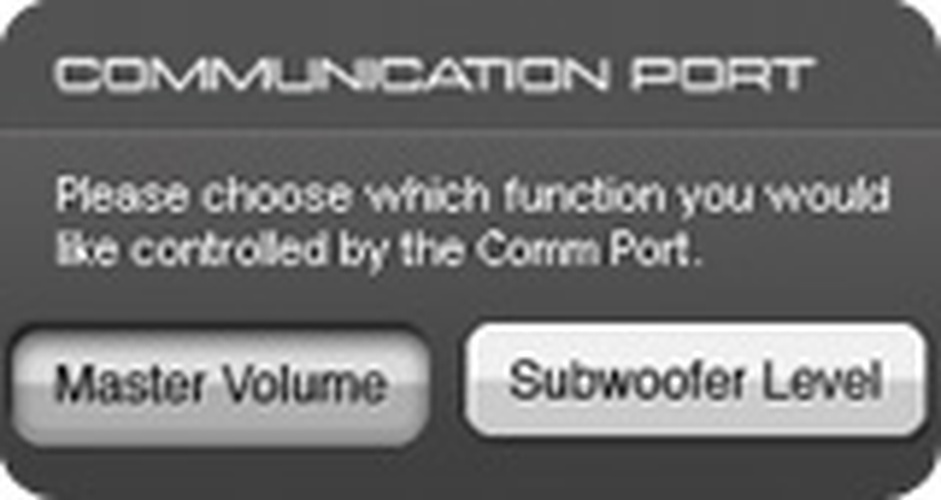
- Select the Comm Port icon from the main menu to go to the Comm Port Screen.
- Select either the Master Volume or Subwoofer Level icon to decide which feature the remote will control.Click the Done icon to continue.
- Selecting Master Volume will allow the remote to control the volume output of the 3Sixty.1/3Sixty.2.
- Selecting Subwoofer Level will allow the remote to control the volume level for the subwoofer (SUB) output of the 3Sixty unit.
- You can select between the main and auxiliary inputs on the 3Sixty.1/3Sixty.2 by pressing in on the knob of the remote.The audio will mute for a moment while it switches inputs.
NOTE: When switched to the auxiliary inputs, the remote will only control the master volume.
Will the 3Sixty.1 and 3Sixty.2 work with an aftermarket source unit?Yes, the 3Sixty will work with an aftermarket source unit. The 3Sixty has (6) six inputs and will accept either high level (speaker-line) or low level (RCA) signal inputs.
When installing the 3Sixty, use either the High Level -or- RCA Inputs. Do not use both types on inputs at the same time.
Can I use the 3Sixty.1 or 3Sixty.2 with another manufacturer's product? Yes, you can use the 3Sixty.1 or 3Sixty.2 with any brand of audio equipment.
Standard RCA input and output jacks allow its compatibility with ANY car audio component on the market.
Do you have example system diagrams of the 3Sixty.1/3Sixty.2 utilizing an OEM or iPod?
Example #1
| 2-Channel w/ OEM Speakers |
Example #2
| Multi-Channel w/ Aftermarket Speakers |
How do I setup the 3Sixty.1/3Sixty.2 delay if I have a pair of component systems in my vehicle? Since the 3Sixty delay option is in inches and feet, how does it change the sound image? Does it create any "echo" effect or increase the "room size" somehow?
The human ear uses several methods to determine the location of sound, one of which is the difference in time from when the sound reaches the left ear compared to the right. In order for a sound to be perceived as being directly in front of the listener, the sound must arrive at each ear at the same time.
In a car, the listener is usually closer to an individual speaker. The sound from this speaker arrives at the listener earlier than the sound from the further speaker. This is perceived as the sound originating from the closer speaker. 3Sixty allows you to delay the speakers that are close to you such that all audio arrives at the listener at the same time. The below diagram illustrates how typical Kick Panel, Dash Location and Door Location installations vary speaker path lengths.
Let's look at a simple 2-speaker installation in the Door Location. The LEFT speaker 20" away from your ears and the RIGHT speaker 44" away. In an ideal world, both speakers would be the exact distance from you, therefore the sound they produce arrive at your ears at the SAME TIME. Since it is impossible to speed up the sound originating from your speakers, you have to work with the one that is furthest away as a reference (in our example, it will take the RIGHT speaker longer for its sound to reach your ear.)
So we have decided that the RIGHT speaker (at 44") is your reference. Regardless if the 3Sixty indicates "distance" or "time" is irrelevant. We said earlier that you want both speakers to be the same distance from you. This means the LEFT speaker needs to be extended 24" (44" - 20" = 24") or 2 feet. Now both LEFT and RIGHT speakers appear to be 44” away. This is a good start, but ultimately it is personal preference. You may find that you have to delay the LEFT speaker by 2'4". The procedure outlined above is simply a starting point.
Why won't my 3Sixty accept the default PIN?When entering the PIN (Personal Identification Number,) we suggest that you use the PDA keypad or keyboard to avoid issues that may arise with character recognition on the PDA controller.
It may be necessary to reset the PIN by pressing the reset button on the side of the 3Sixty, this will reset the PIN back to the default #0000. At this time you can enter a new PIN number.
*Pressing the reset button ONLY resets the PIN, it DOES NOT reset any other settings.
What is the range for Bluetooth connectivity between the 3Sixty and the Palm Pilot? On average, Bluetooth signals have a 30 foot range taking into consideration any objects that can interfere with the signal.
There are numerous things that can affect signal strength, ultimately we recommend making adjustments inside or right outside of the vehicle.
Can I use the 3Sixty BLD with my 3Sixty.1 or 3Sixty.2 signal processor?3Sixty.1 & 3Sixty.2 provides enough signal boost for Rockford Fosgate amplifiers.
If more boost is needed, the Balanced Line Driver can be used in the same system.
How does the 3Sixty.1/3Sixty.2 compare to the JL Audio® CleanSweep® and the Audio Control® LC8?
How can I troubleshoot the 3Sixty when using a Windows Mobile Device?
Windows Mobile locks up or freezes.
- Perform a soft reset on your Windows Mobile by locating the RESET button on the Windows Mobile. Please see Windows Mobile owner’s manual for location of this button as it varies from device to device.
When installing the 3Sixty programs onto my Windows Mobile, I do not see them listed in the available applications.
- See Software Installation at the beginning of this manual to ensure you have loaded the correct software for the Windows Mobile device you are using.
The Windows Mobile device won’t connect to the 3Sixty.
- Check that 3Sixty is powered up and power indicator is solid, not blinking.
- Make sure you are using the appropriate software for your hardware, IE 3Sixty.1 software with a 3Sixty.1 device or the 3Sixty.2 software for a 3Sixty.2 device.
- Make sure Windows Mobile device is not in DEMO mode (When in this mode, the file being adjusted will be named “Untitled” in the upper part of the screen).
- Move Windows Mobile device closer to the 3Sixty unit, there may be too much metal between the 3Sixty and the Windows Mobile device reducing the signal strength.
- Verify you have the correct PIN.
When adjusting the EQ, the Windows Mobile device appears to freeze or lock up.
- When you adjust the EQ, the Windows Mobile device will show “Updating…” on the top of the EQ section. This is an indication that the Windows Mobile is still processing your changes. Simply wait and this message should disappear and Windows Mobile will become active. If it does not, you may need to reset your Windows Mobile (see Windows Mobile owners manual for more info).
Be first to hear about the latest products.
Sign up for product updates.